
Download Disk Drill Windows Data Recovery – Free, Secure & Reliable Data Recovery Tool for Windows 11, 10, 8, 7
Disk Drill Windows Data Recovery is a powerful and user-friendly software designed to help users retrieve lost, deleted, or corrupted files from internal and external storage devices. Whether you've accidentally emptied the Recycle Bin, suffered a system crash, or lost data due to a virus attack, this tool offers a fast and secure way to recover your important documents, photos, videos, and more. With support for over 300 file systems including NTFS, HFS, exFAT, FAT, and EXT4, Disk Drill ensures compatibility across a wide range of drives and devices.
The free version allows recovery of up to 500MB of data, making it ideal for minor data loss emergencies. For larger recoveries, a Pro upgrade removes the file size limit and unlocks advanced features like data protection, backup creation, and deep scan optimization. The intuitive interface and minimalistic design make it accessible even for non-technical users, while the dual scanning options—quick and deep—enable efficient recovery based on urgency and complexity.
Why Disk Drill Windows Data Recovery Stands Out Among Data Recovery Tools
When it comes to recovering lost data on Windows systems, Disk Drill Windows Data Recovery emerges as a top-tier choice due to its combination of performance, ease of use, and reliability. Unlike many tools that overwhelm users with technical jargon and complex interfaces, Disk Drill delivers a clean, modern, and intuitive experience. From the moment you launch the application, you’re greeted with a streamlined dashboard that guides you through the recovery process step by step. The software supports both quick and deep scanning modes, allowing users to choose between speed and thoroughness depending on their needs. Quick scans are perfect for recently deleted files, while deep scans delve deeper into the drive’s sectors to recover data from corrupted or reformatted partitions.
One of the most impressive features is its ability to reconstruct lost partitions. If your drive has become unallocated or your system fails to recognize a partition, Disk Drill can detect and rebuild it, restoring access to your data. This functionality is especially useful after accidental formatting or system crashes.
Additionally, the software supports a wide array of storage devices, including external hard drives, USB flash drives, SD cards, memory sticks, and even iPods and digital cameras. This versatility makes it a must-have for photographers, students, and professionals who frequently transfer or store large volumes of data. The tool also integrates seamlessly with Windows 11, 10, 8, and 7, ensuring broad compatibility across modern and legacy systems.
Another standout aspect is its data protection capabilities. Beyond recovery, Disk Drill allows users to create backups and schedule automatic protection for critical files. This proactive approach helps prevent future data loss, turning the tool into both a rescue and preventive solution. With no malware, ads, or intrusive pop-ups, Disk Drill ensures a secure and trustworthy recovery experience. Whether you're recovering a single document or rebuilding an entire partition, the software delivers consistent results with minimal user effort.
How to Install and Use Disk Drill Windows Data Recovery Effectively
Downloading and installing Disk Drill Windows Data Recovery is a straightforward process that takes less than five minutes. Begin by visiting the official website and clicking the “Download” button. The installer is lightweight and runs smoothly on all Windows versions, including Windows 11, 10, 8, and 7. Once downloaded, run the executable file and follow the on-screen prompts. The installation wizard is simple, requiring no advanced configuration—just accept the default settings and wait for the process to complete.
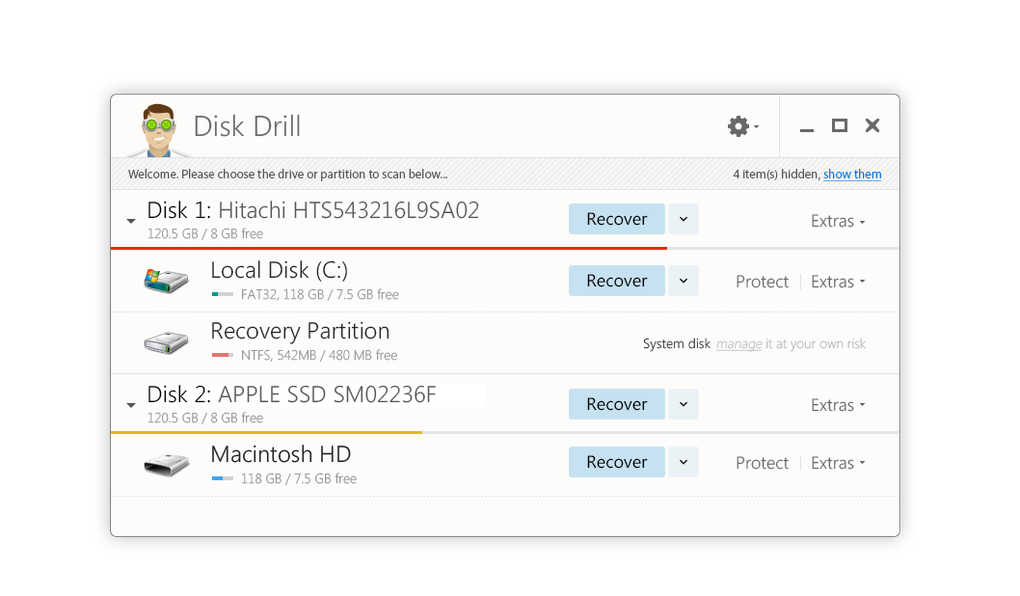
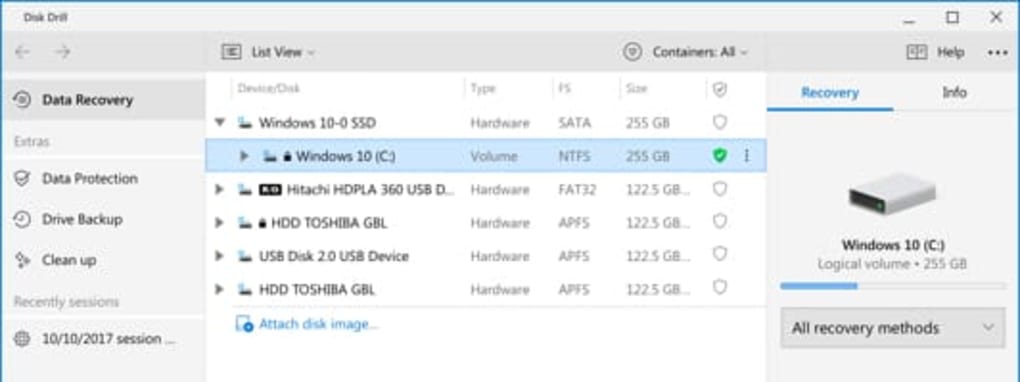
After installation, launch the application. You’ll be presented with a clean, minimalistic interface that highlights the main recovery options. The first step is to select the drive you wish to scan—this can be your internal hard drive, SSD, or any connected external device. Next, choose your scan type: “Quick Scan” for recently deleted files or “Deep Scan” for more complex data loss scenarios. The deep scan takes longer but provides a more comprehensive search, especially useful after formatting or corruption.
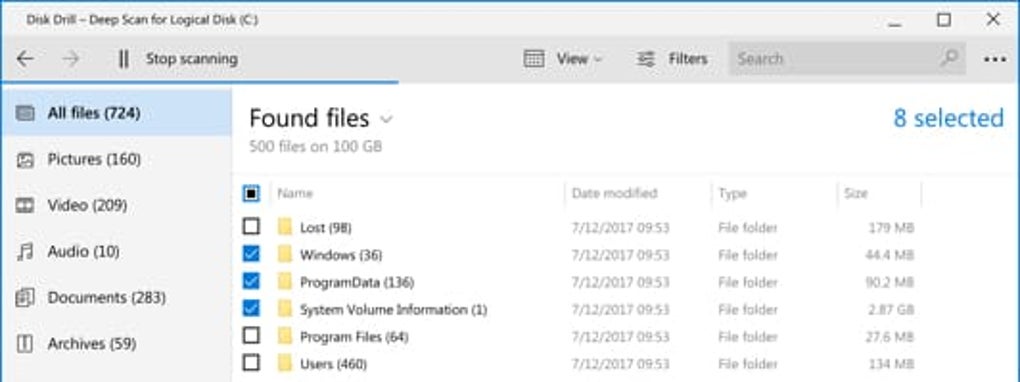
During the scan, you can pause, resume, or save the progress at any time. This is particularly helpful if you're working on a large drive and need to stop temporarily. Once the scan finishes, Disk Drill displays a list of recoverable files organized by type—photos, videos, documents, archives, and more. You can preview files before recovery to ensure they’re intact. Select the files you want to restore, choose a safe destination (preferably a different drive to avoid overwriting), and click “Recover.” The entire process is non-destructive, meaning your original data remains untouched until you confirm the recovery.
For optimal results, avoid saving recovered files back to the same drive from which they were lost. Always use a separate storage device to prevent data overwrite. With its intuitive workflow and reliable performance, Disk Drill makes data recovery accessible to everyone, regardless of technical expertise.
Compatibility, Features, and Performance Across Devices
One of the key strengths of Disk Drill Windows Data Recovery is its extensive compatibility. It runs smoothly on all major Windows operating systems, including Windows 11, 10, 8.1, and 7, both 32-bit and 64-bit versions. This ensures that users with older or newer systems can benefit from its powerful recovery tools without compatibility issues. The software supports over 300 file systems, including NTFS, HFS+, exFAT, FAT32, and EXT4, making it suitable for use with a wide range of storage devices across different platforms.
Whether you're recovering data from a damaged internal drive, a corrupted USB stick, an SD card from a camera, or a failed external hard drive, Disk Drill adapts to the device’s file system and performs efficiently. It also handles compressed files such as ZIP, RAR, and ISO, ensuring that archived data isn’t lost during recovery. The software works on both internal and external drives, including SSDs, HDDs, and portable storage devices, making it ideal for users who frequently transfer files between devices.
Performance-wise, Disk Drill delivers consistent results with minimal system resource usage. The scanning process is optimized to run in the background without significantly slowing down your computer. The deep scan, while more intensive, is still manageable on modern systems. Additionally, the tool includes a “Data Protection” feature that allows users to create backups and set up automatic protection for important folders, adding a layer of long-term data security. With its robust feature set and reliable performance, Disk Drill stands out as a comprehensive solution for both emergency recovery and proactive data management.
Pros, Cons, and Frequently Asked Questions
- Pros:
- Free version allows recovery of up to 500MB of data
- Supports over 300 file systems and multiple storage devices
- Intuitive, user-friendly interface suitable for beginners
- Offers both quick and deep scan options
- Rebuilds lost or corrupted partitions effectively
- Non-destructive recovery process
- No malware, ads, or pop-ups
- Compatible with Windows 11, 10, 8, 7
- Cons:
- Free version limits recovery to 500MB
- Advanced features require Pro subscription
- Deep scans can be time-consuming on large drives
- Limited Mac support in free version
FAQ: Frequently Asked Questions About Disk Drill Windows Data Recovery
- Is Disk Drill Windows Data Recovery free to download and use?
-
Yes, Disk Drill offers a free version that allows users to recover up to 500MB of data. The download is completely free, and the software is safe to install with no malware or ads. However, to recover more than 500MB or access advanced features like data protection and backup, you’ll need to upgrade to the Pro version.
- Can Disk Drill recover files from a formatted drive?
-
Yes, Disk Drill can recover files from formatted drives, especially if the formatting was recent and the data hasn’t been overwritten. The deep scan feature is particularly effective in such cases, as it searches for remnants of deleted files across the drive’s sectors.
- Does Disk Drill work on external hard drives and USB sticks?
-
Absolutely. Disk Drill supports all types of external storage devices, including USB flash drives, external hard drives, SD cards, memory sticks, and even devices like iPods and digital cameras.
- How long does a deep scan take?
-
Deep scans can take anywhere from 30 minutes to several hours, depending on the drive size and condition. Larger drives or heavily corrupted ones will take longer. However, the scan can be paused and resumed, giving you flexibility.
- Is it safe to use Disk Drill on my system?
-
Yes, Disk Drill is completely safe to use. It does not install malware, ads, or unwanted software. The recovery process is non-destructive, meaning your original data remains intact until you explicitly recover it.
Conclusion: Is Disk Drill Worth Downloading?
If you’ve ever lost important files due to accidental deletion, system crashes, or hardware issues, Disk Drill Windows Data Recovery is a reliable solution worth downloading. With its intuitive design, robust scanning tools, and support for a wide range of file systems and devices, it stands out as one of the most effective data recovery tools available for Windows users. While the free version has a 500MB recovery limit, it’s perfect for minor data loss emergencies. For larger recoveries or advanced features, the Pro upgrade offers excellent value.
Whether you're a student, professional, or casual user, Disk Drill provides peace of mind by helping you retrieve lost data quickly and securely. Don’t wait until it’s too late—download Disk Drill today and protect your digital life.
CTA: Download Disk Drill Windows Data Recovery Now – Free & Secure







